Deleting all chat history
It’s easy to delete your chat history:
| 1 |
Sign in to Skype.
|
| 2 |
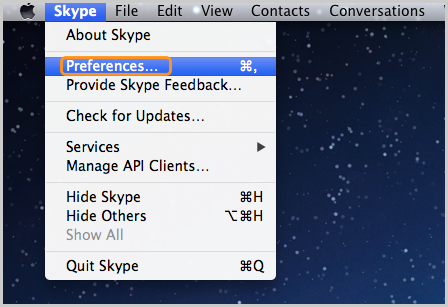
In the menu bar, click Skype > Preferences….
 |
| 3 | In the window that opens, select the Privacy panel. |
| 4 | Click Delete All Chat history. This may take a few minutes to delete. |
You can also indicate how long you'd like to save your history for. In the Save chat history area, select from: 1 Month, 3 Months, 1 Year, Forever, or Never.
It’s not possible to delete a part of the conversation history only, but you can delete a conversation with a particular Skype contact. This will delete all the conversations you’ve ever had with that contact.
Deleting my entire conversation
It’s easy to delete a conversation:
| 1 |
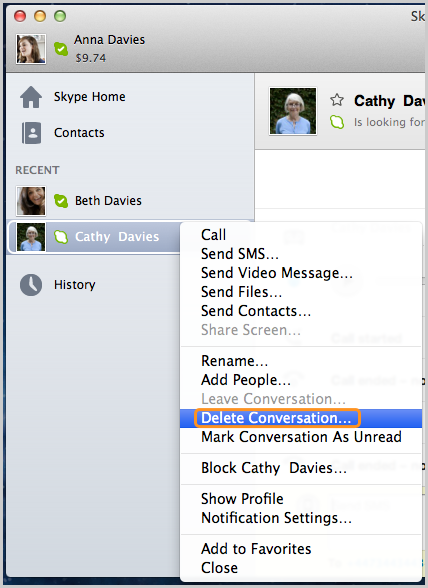
CTRL-click the conversation and select Delete Conversation....
 |
| 2 | In the pop-up window, click Delete.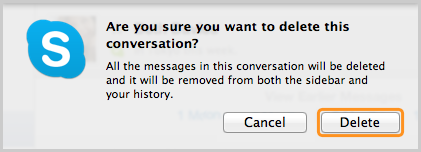 |
Removing/clearing all recent conversations from the sidebar
You can also remove all recent conversations from the sidebar:
| 1 | In the main menu, go to Conversations > Clear Recent…. |
| 2 | A message box appears asking “Clear all recent conversations?”. |
| 3 | Click Clear Recent. Your recent conversations are removed from the sidebar. |

No comments:
Post a Comment