
Friday, January 30, 2015
Before I met you I never knew what it was like to be able to look at someone and smile for no reason
Before I met you I never knew what it was like to be able to look at someone and smile for no reason

Love is magical and it gives you the strength to heal and transform your pain
Love is magical and it gives you the strength to heal and transform your pain


a person who loves you truly will never let you go
a person who loves you truly will never let you go


“So it's not gonna be easy. It's going to be really hard; we're gonna have to work at this everyday, but I want to do that because I want you. I want all of you, forever, everyday. You and me... everyday.”
“So it's not gonna be easy. It's going to be really hard; we're gonna have to work at this everyday, but I want to do that because I want you. I want all of you, forever, everyday. You and me... everyday.”


Quote About Love - I love you without knowing how - Pablo Neruda
“I love you without knowing how, or when, or from where. I love you simply, without problems or pride: I love you in this way because I do not know any other way of loving but this, in which there is no I or you, so intimate that your hand upon my chest is my hand, so intimate that when I fall asleep your eyes close.”
― Pablo Neruda, 100 Love Sonnets

― Pablo Neruda, 100 Love Sonnets
Thursday, January 29, 2015
How do I manually download and install Java for my Windows computer?
This article applies to:
The procedure to install Java broadly consists of:
» Windows System Requirements
 Detect older versions (8u20 and later versions). Starting with Java 8 Update 20 (8u20), on Windows systems, the Java Uninstall Tool is integrated with the installer to provide an option to remove older versions of Java from the system. The change is applicable to 32 bit and 64 bit Windows platforms.
Test Installation
- Platform(s): Windows 2000, Windows 2003, Windows 2008 Server, Windows 7, Windows 8, Windows XP
- Java version(s): 7.0, 8.0
The procedure to install Java broadly consists of:
» Windows System Requirements
Note: Installing Java requires that you can gain administrator access to Windows on your computer.
Download and Install
It is recommended, before you proceed with online installation you may want to disable your Internet firewall. In some cases the default firewall settings are set to reject all automatic or online installations such as the Java online installation. If the firewall is not configured appropriately it may stall the download/install operation of Java under certain conditions. Refer to your specific Internet firewall manual for instructions on how to disable your Internet Firewall.
- Go to the Manual download page
- Click on Windows Online
- The File Download dialog box appears prompting you to run or save the download file
- To run the installer, click Run.
- To save the file for later installation, click Save.
Choose the folder location and save the file to your local system.
Tip: Save the file to a known location on your computer, for example, to your desktop.
Double-click on the saved file to start the installation process.
- The installation process starts. Click the Install button to accept the license terms and to continue with the installation.

- Oracle has partnered with companies that offer various products. The installer may present you with option to install these programs when you install Java. After ensuring that the desired programs are selected, click the Next button to continue the installation.

- A few brief dialogs confirm the last steps of the installation process; click Close on the last dialog. This will complete Java installation process.

Detect older versions (8u20 and later versions). Starting with Java 8 Update 20 (8u20), on Windows systems, the Java Uninstall Tool is integrated with the installer to provide an option to remove older versions of Java from the system. The change is applicable to 32 bit and 64 bit Windows platforms.Notifications about disabled Java and restoring prompts
The installer notifies you if Java content is disabled in web browsers, and provides instructions for enabling it. If you previously chose to hide some of the security prompts for applets and Java Web Start applications, the installer provides an option for restoring the prompts. The installer may ask you to reboot your computer if you chose not to restart an internet browser when it prompted you to do so.
Test Installation
To test that Java is installed and working properly on your computer, run this test applet.
NOTE: You may need to restart (close and re-open) your browser to enable the Java installation in your browser.
DSL Speed Test tool
Speedtest.net is your best friend when you're having connectivity problems. Run a speed test to see what your download and upload speeds are—ideally they should be at least 50 percent of your Internet service provider’s advertised speeds, with a ping under 100 milliseconds.
If the speeds seem solid, make sure that you aren’t inadvertently downloading or uploading anything. Many torrent downloading programs run in the background and minimize into the system tray instead of the taskbar.
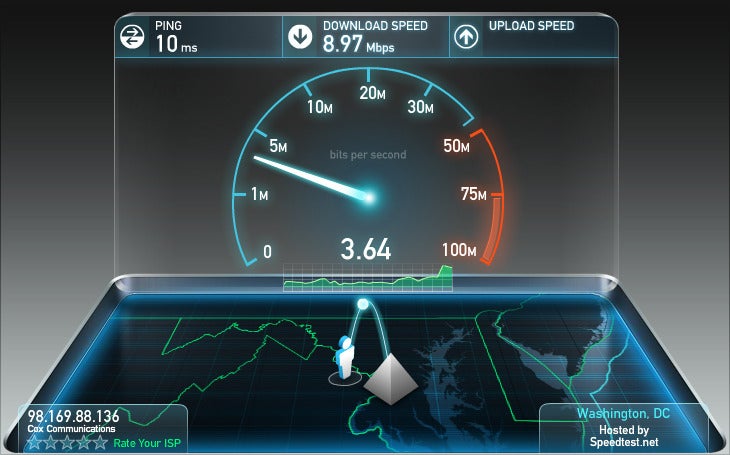
Check your network hardware. Updates for network cards aren’t all that common, but if your card’s manufacturer offers a newer driver, download it. Resetting your router and modem can help with connection problems, too. Most routers and modems have reset buttons, but pulling the power cable for a second or two can do the same thing. Don’t cut the power for much longer, or the hardware may reset itself to factory defaults.
Still having problems? Call your ISP, which can tell you whether the problem is on your end. As a last-ditch measure, the ISP could reset the master connection to your home.
Mac Keyboard Shortcuts
 Menu Symbols
| Menu Symbol | Key on Keyboard |
 | Command/Apple Key (like Control on a PC) Also written as Cmd |
 | Option (like Alt on a PC) |
 | Shift |
 | Control (Control-click = Right-click) |
 | Tab |
 | Return |
 | Enter (on Number Pad) |
 | Eject |
 | Escape |
 | Page Up |
 | Page Down |
 | Home |
 | End |
 | Arrow Keys |
 | Delete Left (like Backspace on a PC) |
 | Delete Right (also called Forward Delete) |
 Finder
| Action | Keystroke |
| Open Sidebar item in a new Tab or Window (depending on Finder Preferences) | Cmd-Click |
| Switch Finder views (Icon, List, Column, Cover Flow) | Cmd-1, Cmd-2, Cmd-3, Cmd-4 |
| In List view, expand a folder | Right Arrow |
| In List view, collapse a folder | Left Arrow |
| Rename the selected file/folder | Press Return (or Enter) |
| Go into selected folder or open the selected file | Cmd-Down Arrow |
| Go to parent folder | Cmd-Up Arrow |
| Go Back | Cmd-[ (that’s left bracket) |
| Go Forward | Cmd-] (that’s right bracket) |
| Select the next icon in Icon and List views | Tab (Shift-Tab reverses direction) |
| Alternate columns in Column View | Tab (Shift-Tab reverses direction) |
| Resize one column to fit the longest file name | Double-Click column divider (or the resize widget at the bottom of the column divider, depending on your setup) |
| Resize all columns to fit their longest file names | Option Double-Click column divider (or the resize widget at the bottom of the column divider, depending on your setup) |
| Copy and Paste files | Cmd-C, then Cmd-V |
| Copy and Paste files Exactly (Keeps original ownership & permissions. Requires Admin username & password.) | Cmd-C, then Cmd-V |
| Cut and Paste files (Move files) | Cmd-C, then Cmd-Option–V |
| Move a file instead of copying (Copies to the destination and removes it from the original disk.) | Cmd-Drag file to disk |
| Move selected files to the Trash | Cmd-Delete |
| Empty the Trash (with warning) | Cmd-Shift-Delete |
| Empty the Trash (without warning) | Cmd-Opt-Shift-Delete |
| Cancel a drag-n-drop action while in the midst of dragging | Esc |
| Show Inspector (a single, live refreshing Info window) | Cmd-Opt-I |
| Undo the last action (such as rename file, copy file, etc.) | Cmd-Z |
| Hide/Show Sidebar (on the left) | Cmd-Opt-S |
| Hide/Show Toolbar (on the top) and the Sidebar | Cmd-Opt-T |
| Move or Remove item in toolbar (at the top of the window). Works in most programs. | Cmd-Drag |
| Open Quick Look (Previews most types of files without having to open them) | Spacebar (or Cmd-Y) or on a trackpad tap with 3 fingers. |
| Zoom In/Out in Quick Look (Images & PDFs) | Pinch on a trackpad or hold Opt while scrolling. For images, holding Opt zooms to 100%. |
| Find Files | Cmd-F |
 App Switcher
| Action | Keystroke |
| Quickly switch between 2 apps (like InDesign & Photoshop) | Press Cmd-Tab to switch to last used app. Press Cmd-Tab again to switch back. NOTE: Press keys quickly and do NOT hold. |
| Switch between apps | Press Cmd-Tab & continue holding Cmd. While holding Cmd, to choose which app you want to switch to you can:
|
| Quit an app in the app switcher | When in the app switcher you’re already holding Cmd, so hit Q to quit selected app. |
| Hide an app in the app switcher | In the app switcher you’re already holding Cmd, so hit H to hide selected app. |
| Cancel the app switcher | In the app switcher you're already holding Cmd, so hit Esc or period(.) |
 Managing Windows & Dialogs
| Action | Keystroke |
| Switch to next window | Cmd-tilde(~) |
| Switch to previous window | Cmd-Shift-tilde(~) |
| See where the File/Folder is located (a menu will pop-up displaying the folder hierarchy). Works in most programs, including the Finder. | Cmd-Click on name of the window (in the titlebar) |
| Move a window in the background without switching to it. | Cmd-Drag on the window’s titlebar |
| Choose “Don’t Save” in a Dialog | Cmd-D in some apps, but other apps use Cmd-Delete (Cmd-D will change the location to the Desktop) |
Subscribe to:
Comments (Atom)